
SiteGPT · WordPress
AI Chatbot for WordPress, Trained on Your Content
Train a chatbot on your site and on the documents behind it, then put it on WordPress with a one-field plugin or a single script tag. It answers visitors around the clock. When someone asks for a person, it hands off.
7-day free trial, credit card required. The plugin is free, and the install takes about three minutes.
Plugin
Is there a WordPress plugin?
Yes
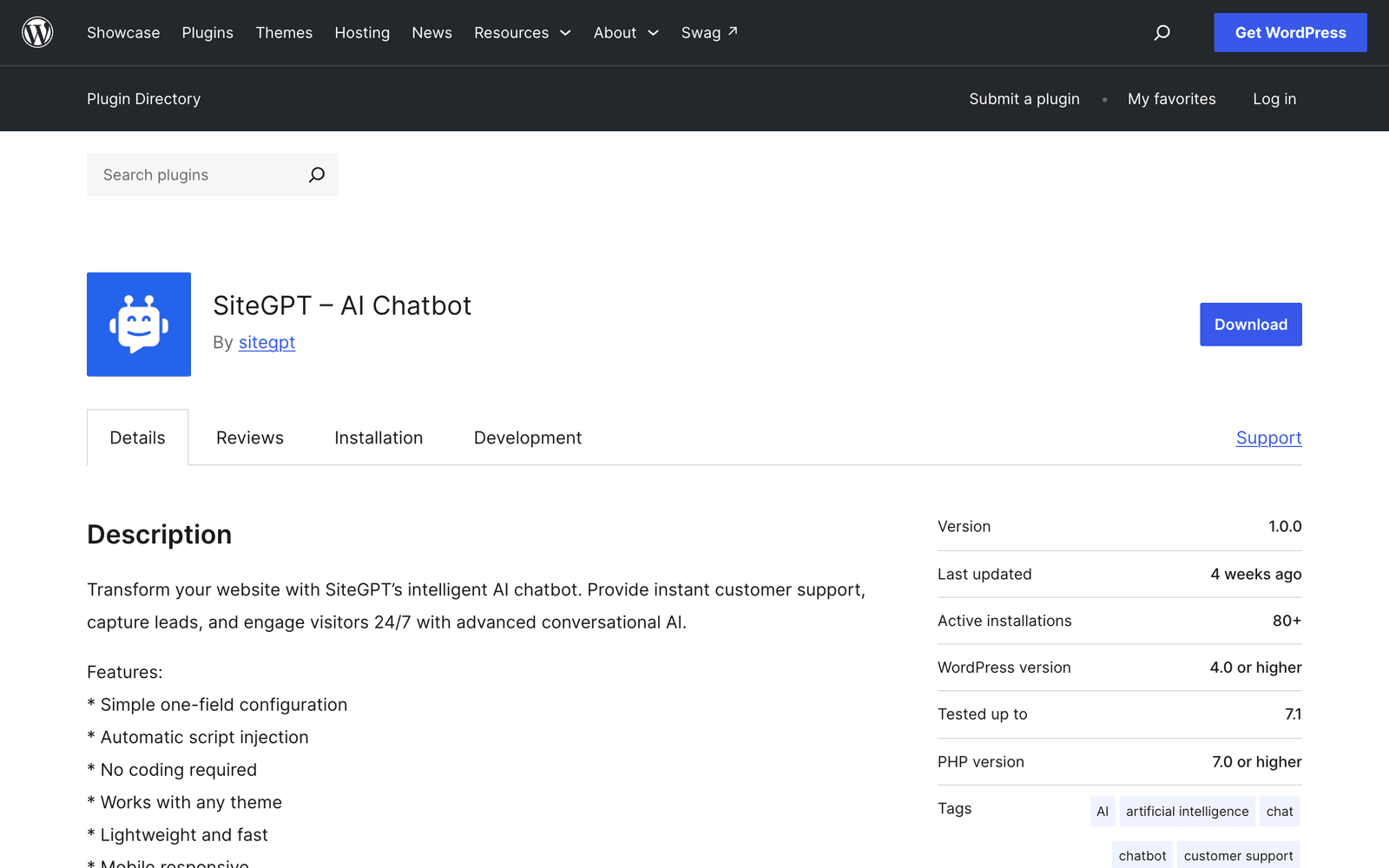
Version 1.0.0, tested to 7.1.1
Free on WordPress.org, with one settings field. It injects the widget into your footer and never touches theme files. Requires WordPress 4.0 and PHP 7.0 or higher.
View it on WordPress.org →No plugin
Do I have to use it?
No
One script tag does the same job
Paste the snippet through a code-snippets plugin instead. Same widget and the same SDK. You decide which pages load it, so this is the route for per-page control.
Read the install docs →What a WordPress site owner needs from a chatbot, in the order it comes up.
Install it
Three steps and about three minutes, with no theme edits. The plugin or a script tag, and a rule for choosing.
Train it on more than posts
A site crawl covers your pages. PDFs, Drive, Notion, and help centers are where the real answers usually live.
Choose a plugin on directory data
The plugins AI assistants name most are the least maintained on WordPress.org. The full table is below.
When the widget does not show
Four common causes, and three of them take under a minute to fix.
3 min
From plugin search to a live chat bubble
1 field
The whole plugin configuration
12+
Source types the chatbot trains on
7.1.1
WordPress version the plugin is tested to
95+
Languages the chatbot answers in
7 days
Free trial, card required
How do you install SiteGPT on WordPress?
Install the free SiteGPT plugin from its WordPress.org listing and paste in your chatbot ID. The plugin injects the widget script through WordPress's wp_footer hook, which prints scripts before the closing body tag.
You set everything about the chatbot itself in the SiteGPT dashboard, from the content it knows to its colors. Changes sync to your site on their own, so the plugin needs only one field.
Requires
WordPress 4.0+, PHP 7.0+
Tested up to
WordPress 7.1.1
Version
1.0.0, updated 13 August 2026
- 1
Create and train the chatbot
Sign up at SiteGPT, create a chatbot, and give it your site URL or sitemap. Add the PDFs, help center articles, and cloud documents that hold answers your posts do not. Open Installation in the chatbot sidebar and copy the chatbot ID.
- 2
Install the SiteGPT plugin
In your WordPress admin, go to Plugins, then Add New Plugin. Search for SiteGPT, click Install Now, then Activate. The plugin appears under Settings, then SiteGPT.
- 3
Paste the chatbot ID and save
Paste the chatbot ID into the single settings field and save. The plugin injects the widget script into your site footer, so the chat bubble appears on every page with no theme edits.
How do you check that it loaded?
Check from a private window. A logged-in admin session and a cached browser both hide problems a visitor would hit. Confirm the bubble appears, then ask a question you know the answer to. Open the browser console and look for any error mentioning the widget script. Last, ask to speak to a person and confirm the notification reaches your team.
Can you add SiteGPT to WordPress without the plugin?
Yes. Open Installation in your chatbot's sidebar and copy the pre-filled snippet. It is the same script the plugin injects, so the JavaScript SDK and tracking events behave the same either way.
<script type="text/javascript">
  window.$sitegpt = [];
  (function () {
    d = document;
    s = d.createElement('script');
    s.src = 'https://sitegpt.ai/widget/YOUR_CHATBOT_ID.js';
    s.async = 1;
    d.getElementsByTagName('head')[0].appendChild(s);
  })();
</script>
Add it to your site footer with a code-snippets plugin such as WPCode. Do not paste it into a theme file, because the next theme update overwrites the edit. A snippets plugin also lets you set conditional logic, so the widget can run only on documentation pages or everywhere except checkout.
| Add to the script URL | Effect |
|---|---|
| ?hideBubble=true | Loads the widget with no floating bubble, for an inline embed. |
| ?open=true | Opens the chat window as soon as the page loads. |
| ?mobile=false | Skips loading the widget on mobile devices. |
| ?delay=3000 | Waits that many milliseconds before loading. |
Options combine like any query string. For a chat window embedded inside a support page instead of floating over it, add a container div with the sitegpt-chat-widget class and load the script with hideBubble set to true. Both patterns are in the installation docs.
Turn on Allowed Domains whichever route you take. It sits under Settings and then General in the dashboard. It stops the widget loading on a site you do not control, so nobody can copy your snippet and spend your message quota under their own brand.
Should you use the plugin or the script tag?
Both put the same widget on the site. For most sites, use the plugin. Reach for the script tag when you need the widget on some pages and not others, or when your host does not allow the plugin.
Use the plugin when
- You want the widget on every page with no code at all
- Several people manage the site and none of them edit code
- You want the install to survive a theme change untouched
Use the script tag when
- You want the widget on some pages and not others
- You already run a snippets plugin for other scripts
- Your host or plan does not allow this plugin
What can a WordPress chatbot be trained on?
Pointing the chatbot at your site URL or sitemap crawls every published page, product pages included. A content site may need nothing more. A business usually keeps answers elsewhere too: a pricing PDF, a returns policy in Google Drive, a help center on Zendesk, or a setup video on YouTube.
SiteGPT trains on 12+ source types, so those go in alongside the crawl. Files cover CSV, TXT, PDF, DOCX, PPTX, and Markdown up to 10 MB each. Connected sources cover Google Drive, Notion, Dropbox, OneDrive, SharePoint, Box, GitHub, and YouTube. Help centers cover Zendesk, Freshdesk, Intercom, Confluence, and Gitbook.
Auto-sync then re-reads those sources on a schedule. It runs monthly on Growth and weekly with a daily scan on Scale, so the chatbot does not quote last quarter's prices. Answers come from retrieval-augmented generation, so adding a document takes effect immediately and removing one takes the answer away. Answering only from your content also stops the chatbot from inventing an answer it has no source for.
When the chatbot cannot answer
A visitor asks for a person and your team gets a notification. Escalation is on every plan. From Growth it also connects to the tools a team already runs, so the handoff lands in an inbox someone is watching. Zendesk needs Scale or above.
- Slack
- Zendesk (Scale+)
- Crisp
- Messenger
- Google Chat
- Freshdesk Messaging
- Zoho SalesIQ
“SiteGPT makes it easy & intuitive to get your chatbot setup & working in no time at all - anyone can do it.”
Which WordPress chatbot plugins are best maintained?
Ask an AI assistant which chatbot to use on WordPress and it names Chatbase, Botsonic, and Tidio. Two of those are among the least maintained plugins in the directory. Chatbase's plugin has had no update since March 2025 and holds a 68% rating. Botsonic's has had none since October 2023.
AI Engine has 100,000 installs at a 98% rating, and those assistants rarely name it.
| Plugin | Installs | Rating | Tested to | Last updated |
|---|---|---|---|---|
| AI Engine | 100,000 | 98% (864) | 7.1 | 8 Sep 2026 |
| Tidio | 70,000 | 94% (396) | 7.1 | 1 Sep 2026 |
| Chatway | 30,000 | 100% (755) | 7.1 | 1 Sep 2026 |
| Crisp | 20,000 | 92% (73) | 6.8.8 | 14 Apr 2025 |
| Collect.chat | 6,000 | 88% (38) | 7.0.4 | 17 May 2026 |
| Hyve Lite | 6,000 | 86% (6) | 7.1 | 1 Sep 2026 |
| WPBot | 5,000 | 94% (123) | 7.1 | 11 Sep 2026 |
| Jotform AI Chatbot | 5,000 | 100% (1) | 7.1 | 13 Aug 2026 |
| Chatbase | 5,000 | 68% (13) | 6.7.7 | 3 Mar 2025 |
| Botsonic | 100 | none | 6.3.10 | 29 Oct 2023 |
| SiteGPT | 80 | none yet | 7.1.1 | 13 Aug 2026 |
Queried from the WordPress.org plugin information API on 12 September 2026. Installs are the directory's rounded bands. The SiteGPT row was re-checked on 19 September 2026. Amber marks a plugin with no testing against any WordPress 7.x release.
On SiteGPT's own row
The SiteGPT plugin is the smallest on the list, at 80 active installs and no reviews yet. It went into the directory in July 2025, while the chatbot behind it has been live since 2023. The install count reflects the plugin's age. Like AI Engine and Tidio, it is tested against WordPress 7.1.1 and was updated in the last two months.
The full ranking, with what each plugin trains on and who it suits, is in best chatbot for a WordPress website. If the other plugin you are weighing is Tidio, the feature by feature comparison is in SiteGPT vs Tidio.
Why is the chatbot not showing on WordPress?
Check these four common causes in order, starting with caching.
| Symptom | Do this | Why |
|---|---|---|
| Visible to you, missing for visitors | Purge the cache | A caching plugin or CDN is serving the page from before you added the widget. |
| Nothing appears and the console is clean | Re-copy the chatbot ID | A trailing space or a partial copy fails silently. Paste it again from the Installation page. |
| Appears only after the visitor clicks Accept | Nothing, this is correct | Your consent banner holds third-party scripts until the visitor consents. |
| Worked, then stopped after a speed plugin | Exclude the widget script | Deferring or combining JavaScript breaks async widgets. Add sitegpt.ai/widget to the exclusion list. |
If none of those apply, confirm the plugin is activated and that your theme calls wp_footer. A theme missing that hook blocks every footer-injected script, chatbots included. The longer walkthrough, with both install routes and the training step, is in how to add a chatbot to WordPress.
How much does SiteGPT cost on WordPress?
The plugin is free. The chatbot runs on a SiteGPT plan, and every plan starts with a 7-day free trial (credit card required). Yearly billing is a lower rate, shown per month and billed annually.
| Plan | Monthly | Yearly, per month | Includes |
|---|---|---|---|
| Starter | $59 | $39billed $468/yr | 1 chatbot, 4,000 messages, 1,000 pages |
| Growth | $129 | $79billed $948/yr | 2 chatbots, 10,000 messages, 10,000 pages, chat integrations (not Zendesk) |
| Scale | $429 | $259billed $3,108/yr | 3 chatbots, 40,000 messages, 50,000 pages, webhooks, Zendesk |
| Enterprise | Custom | Custom | Custom volume, HIPAA BAA, priority support |
Message counts are the all-GPT-4.1-mini end of a range that you set from billing settings. Removing SiteGPT branding and adding 5,000 messages are each $59 a month billed monthly, or $39 a month billed yearly. Full detail on the pricing page.
Trust and compliance

SOC 2 Type II examination completed.

GDPR certified. Signed DPA on the Enterprise plan.

HIPAA BAA on the Enterprise plan only.
Which WordPress guides go deeper?
The ranking and the walkthrough cover each topic in more detail.
Sources
- SiteGPT AI Chatbot on WordPress.org: version, requirements, and install count.
- WordPress developer reference, wp_footer: the hook the plugin uses to print the widget script.
- SiteGPT installation docs: the script snippet, URL options, and inline embed.
Frequently asked questions
Does SiteGPT have a WordPress plugin?
Yes. The SiteGPT AI Chatbot plugin is listed on WordPress.org at version 1.0.0, tested up to WordPress 7.1.1, and requires WordPress 4.0 or higher and PHP 7.0 or higher. It has one settings field: your chatbot ID. The plugin injects the widget script into your site footer through wp_footer. Every theme in the WordPress directory calls that hook, so the plugin works with any of them.
Is the SiteGPT WordPress plugin free?
The plugin is free to install from WordPress.org. The chatbot behind it runs on a SiteGPT plan, and every plan starts with a 7-day free trial that asks for a card. Starter is $59 a month billed monthly, or $39 a month billed yearly at $468 a year. There is no permanently free plan.
Can I add SiteGPT to WordPress without the plugin?
Yes. Copy the script snippet from the Installation page in your SiteGPT dashboard and add it to your site footer with a code-snippets plugin such as WPCode. The snippet is one script tag and loads asynchronously. This route gives you per-page control, because a snippets plugin can run the script only on the pages you choose.
Does the chatbot only know my WordPress posts?
No. A site crawl covers your published posts and pages, including public product pages. SiteGPT also trains on PDFs, Word and PowerPoint files, Google Drive, Notion, Dropbox, OneDrive, SharePoint, Box, GitHub, YouTube, and help centers such as Zendesk, Freshdesk, Intercom, Confluence, and Gitbook. Auto-sync re-reads those sources monthly on Growth and weekly with a daily scan on Scale.
Will the plugin slow down my WordPress site?
The plugin adds one script tag that loads asynchronously, so it does not block page rendering. It adds a network request and some JavaScript weight, the same as any hosted chat widget. Plugins that run AI calls on your own server add load to PHP instead. The larger risk in this category is an unmaintained plugin that breaks on a WordPress upgrade.
Does it work on WordPress.com?
WordPress.com lets you install plugins only on plans that allow them. Self-hosted WordPress from WordPress.org has no such limit. If your WordPress.com plan allows plugins, the SiteGPT plugin installs the same way. If it does not, you either upgrade the plan or move to self-hosted WordPress.
Can I show the chatbot on some pages only?
Yes. The manual script route is the cleanest way, because a code-snippets plugin lets you set conditional logic for which pages run the snippet. From the SiteGPT dashboard you can also restrict the domains the widget loads on under Settings, General, Allowed Domains, and the script URL accepts options to skip mobile or delay loading.
Does the chatbot hand off to a person?
Yes, on every plan. A visitor asks to speak to someone and your team gets a notification. From Growth, escalation connects to Slack, Crisp, Messenger, Google Chat, Freshdesk Messaging, and Zoho SalesIQ. Zendesk needs Scale or above. A question the chatbot cannot answer then reaches a person in a tool the team already runs.
Train it first, then install it
Start a 7-day free trial (credit card required), point the chatbot at your site and the documents your posts do not cover, then add it to WordPress with the plugin or the snippet. Budget half an hour end to end.